 Crios
Crios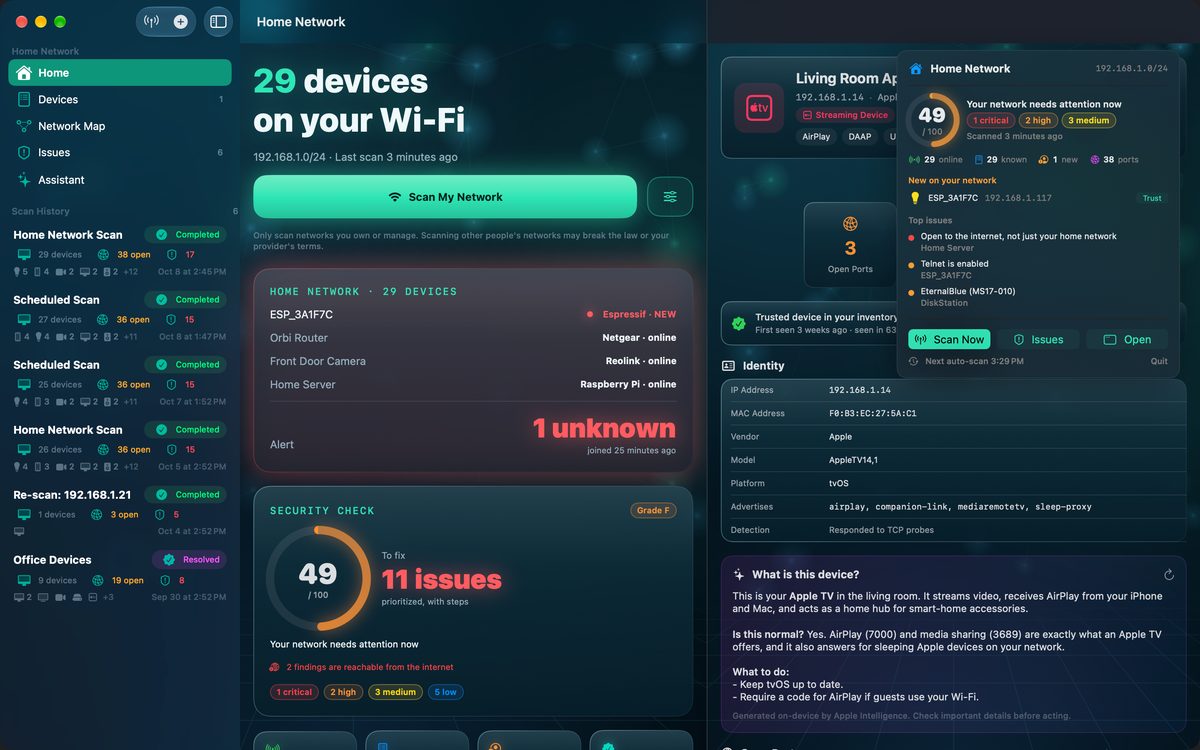
The routine
- Scan. Tap Scan My Network on Home.
- Review new devices. Anything under New on your network: identify it, then trust, name or remove it. See Unknown device on your Wi‑Fi?
- Check the score. Did it drop since last month? The What to fix first card shows why.
- Fix internet‑facing issues first. Switch Issues to Internet. Anything here is reachable by anyone online.
- Glance at newly opened ports. Open a device to see any ports that opened since the previous scan; a firmware update may have enabled something.
- Verify last month's fixes stuck. Tap Check Now on anything you closed.
Automate it on a Mac
- Automatic network scans (Settings) run on a schedule, from every 15 minutes to daily, while Crios is open.
- Alert me about new devices sends a notification when a scan finds a device that's never been on your network.
- The menu bar shield shows your current score, new devices and top issues, with a Scan Now button.
Get a briefing
On a device that supports Apple Intelligence, the Security Briefing card on Home summarises your network in a few sentences and lists the top three actions. It's generated on your device from your latest scan. The Network Assistant answers follow‑up questions such as “What should I fix first?” using your current scan.
Keep records
Export your device inventory as CSV or JSON from the Devices tab, and scan reports as PDF, CSV or text. Handy for comparing months, or for sharing with whoever helps you with IT.
Habits that keep the score high
- Name and trust devices as soon as they arrive, so the next alert means something.
- Put new smart gadgets straight onto your guest or IoT network.
- Remove port forwards when you stop using them.
- Replace devices the manufacturer no longer updates.