 Crios
Crios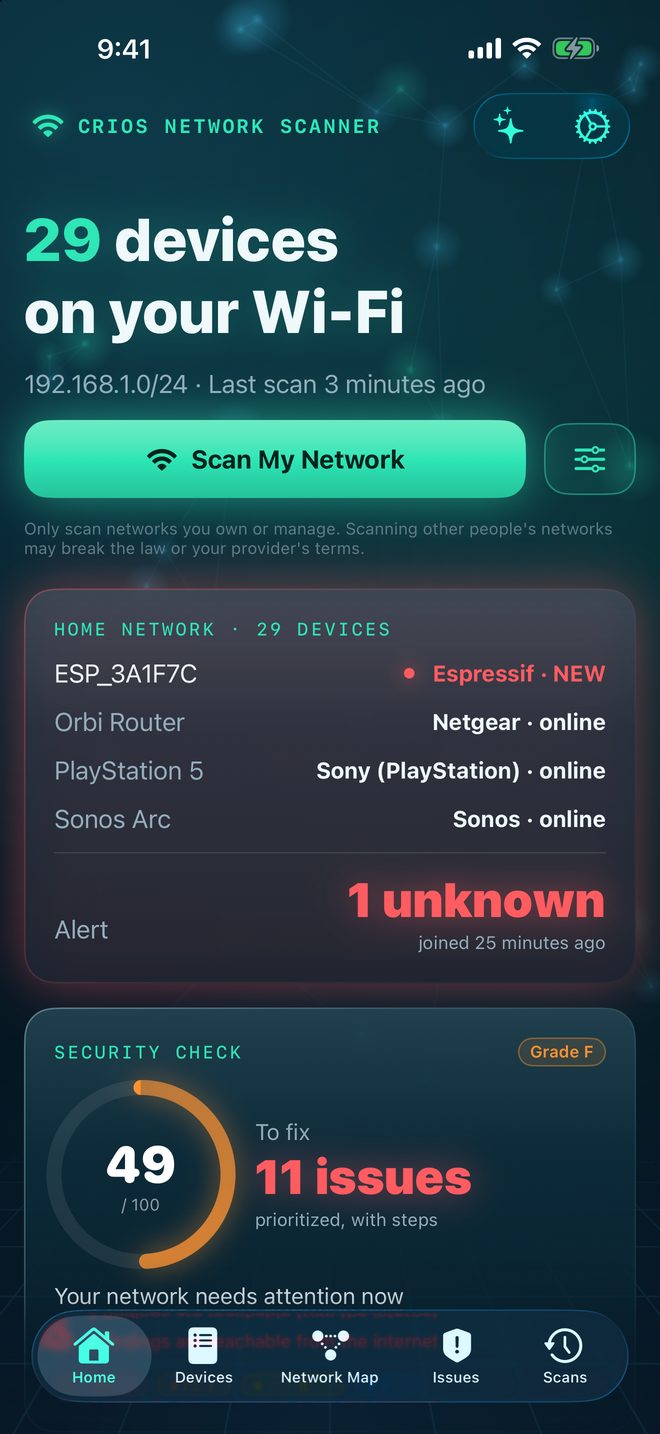
Start with the usual suspects
Before assuming the worst, rule out the common, harmless causes. In our experience they account for the vast majority of new‑device alerts:
- A guest's phone or laptop you gave the Wi‑Fi password to.
- A private Wi‑Fi address change. Phones can rotate their randomized address, which makes a familiar phone look new. Crios marks these as Private Wi‑Fi address.
- A device that was asleep during earlier scans: a printer, a game console in standby, a spare tablet in a drawer.
- Something you just set up, like a smart plug or a new TV.
Read the clues Crios gives you
Open the device. The Identity section collects everything the network revealed:
| Clue | What it tells you |
|---|---|
| Vendor | The manufacturer from the hardware address (on Mac) or from UPnP. “Espressif” and “Tuya” usually mean a smart‑home gadget; “Sony (PlayStation)” or “Nintendo” a console. |
| Model | From Bonjour or UPnP, often exact: “AppleTV14,1”, “Synology DS923+”. |
| Hostname | What the device calls itself: “Galaxy‑Tab‑A9”, “ESP_3A1F7C”, “DESKTOP‑4K2J”. |
| Advertises | Bonjour services such as AirPlay, printing or HomeKit, which say what the device can do. |
| Open ports | Services it offers. Port 62078 points to an iPhone or iPad; 9100 and 631 to a printer; 8008 to a Chromecast. |
On a device that supports Apple Intelligence, the What is this device? card turns those clues into a plain‑language guess, generated on your device.
Find it in the real world
- Match the address in your router. Most router apps list connected clients with names and connection times. Match Crios's IP address to the router's entry.
- Turn things off one at a time. Unplug a suspected smart plug, then tap Check Now on one of its ports, or re‑scan it. If it stops answering, you've found it.
- Ask the household. Teenagers' consoles and partners' work laptops explain a lot of mysteries.
When to worry
An unknown device with Telnet, SSH or remote desktop open; one that appears at odd hours when nobody's home; or one that nobody recognises after you've checked the router and the household.
Any of these deserves the steps below, even if it turns out innocent. The cost of acting is a few minutes; the cost of ignoring a real intruder is much higher.
How to lock it out
- Change your Wi‑Fi password to a long, unique passphrase. Every device must rejoin, which removes anyone who shouldn't be there.
- Use WPA3, or WPA2/WPA3 mixed mode if older devices need it, and turn off WPS in the router. Crios can't see these settings; check them in your router's app.
- Block the device by address in the router if you want it gone immediately.
- Re‑scan after everything has reconnected. The unknown device should be absent.
Keep the list tidy
Once you know what it is, name it and mark it Trusted, or mark it Ignored if it's a device you manage elsewhere and don't want in security checks. A clean inventory is what makes the next alert meaningful.