 Crios
Crios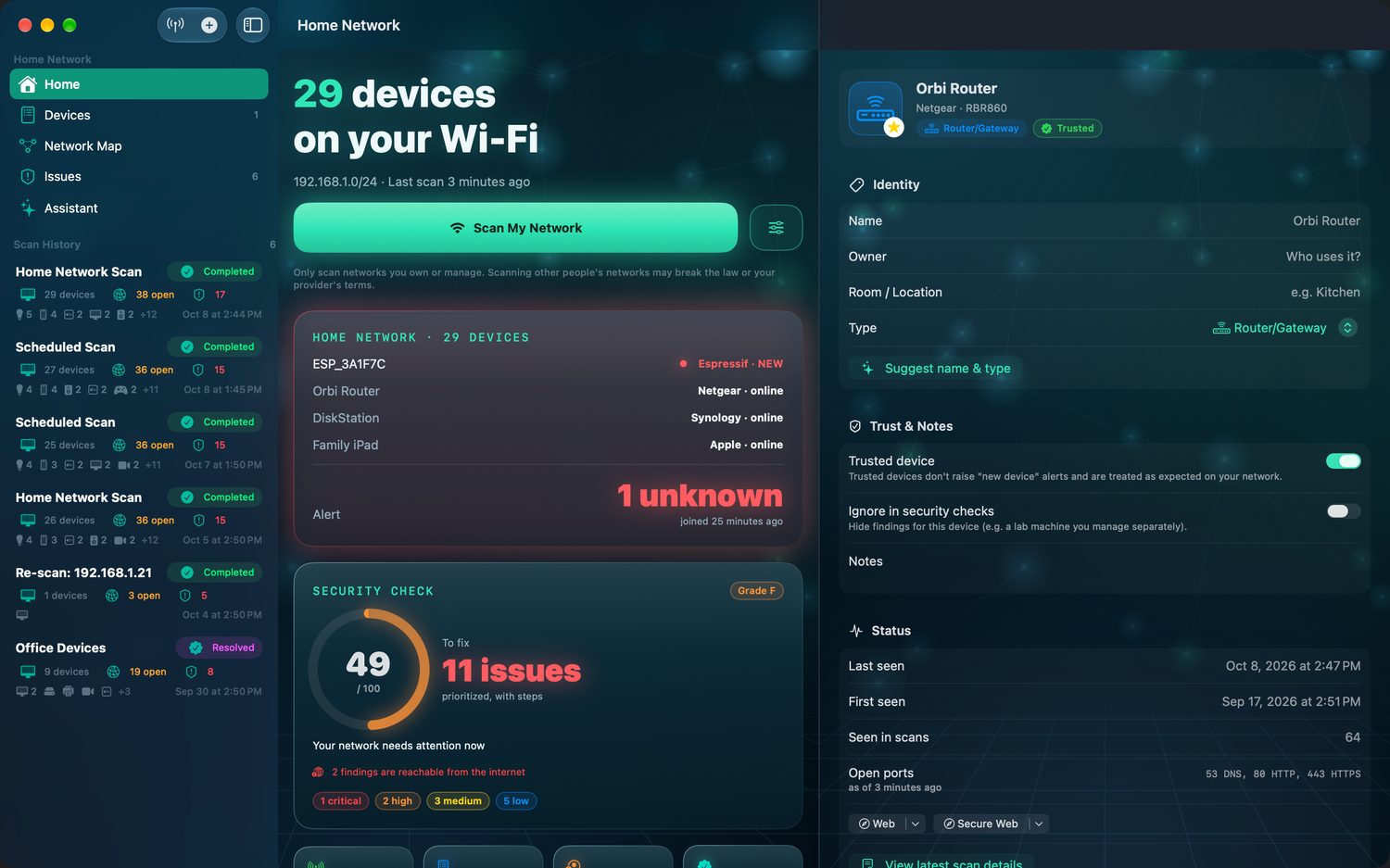
Why a baseline matters
Most home networks carry far more devices than their owners would guess. Phones, laptops and TVs are obvious; the thermostat, the robot vacuum, a smart plug behind the sofa and a printer that's been asleep for months are not. A typical household lands somewhere between 20 and 50 devices.
Without a record of what's supposed to be there, an unfamiliar device looks exactly like a familiar one: a row in a list with an address. The baseline gives you that record. Crios treats everything found in your first scan as to review, and everything that appears after it as new. Review once, and the app can warn you the moment something unfamiliar joins.
Before you start
- Be on your own network. Crios scans the network your device is connected to. Run it at home, on the Wi‑Fi or Ethernet you want to check.
- Allow Local Network access. The first time you scan, iOS and macOS ask whether Crios may find devices on your local network. Choose Allow; without it the system hides most devices from the app.
- Wake things up. Devices that are fully asleep may not answer. If you can, run the first scan at a time when most of the household is home and devices are in use.
Run the scan
Tap Scan My Network on the Home screen. Crios runs a home network discovery in two phases:
- A fast sweep of every address on your subnet. A device that refuses a connection still proves it exists, so locked‑down phones and laptops are found even with nothing open.
- A deeper check of the 44 ports typical of home devices, only on the addresses that answered.
While it runs, Crios also listens for Bonjour and UPnP announcements, which is where most friendly names and models come from. On a Mac it reads the system's address table as well, so each device gets its hardware (MAC) address and manufacturer.
A typical /24 home network (254 addresses) finishes in a minute or two. You can leave the screen; on iPhone and iPad the scan pauses if the app goes to the background and resumes when you return.
Review each device
When the scan finishes, Home shows a Review your devices card and the Devices tab groups everything by status. Work through the list once:
- Recognise it? Open it and tap Trust. Trusted devices stop raising alerts and are treated as expected on your network.
- Give it a proper name. “Living Room TV” beats “LGwebOSTV‑C4”. Add an owner and a room while you're there; the list becomes a real household inventory.
- Not sure what it is? Look at the vendor, model and advertised services. On a supported device, Suggest name & type asks Apple Intelligence, on your device, for a likely name based on those clues.
- Still don't know? Leave it untrusted for now. Our guide on unknown devices walks through how to track it down.
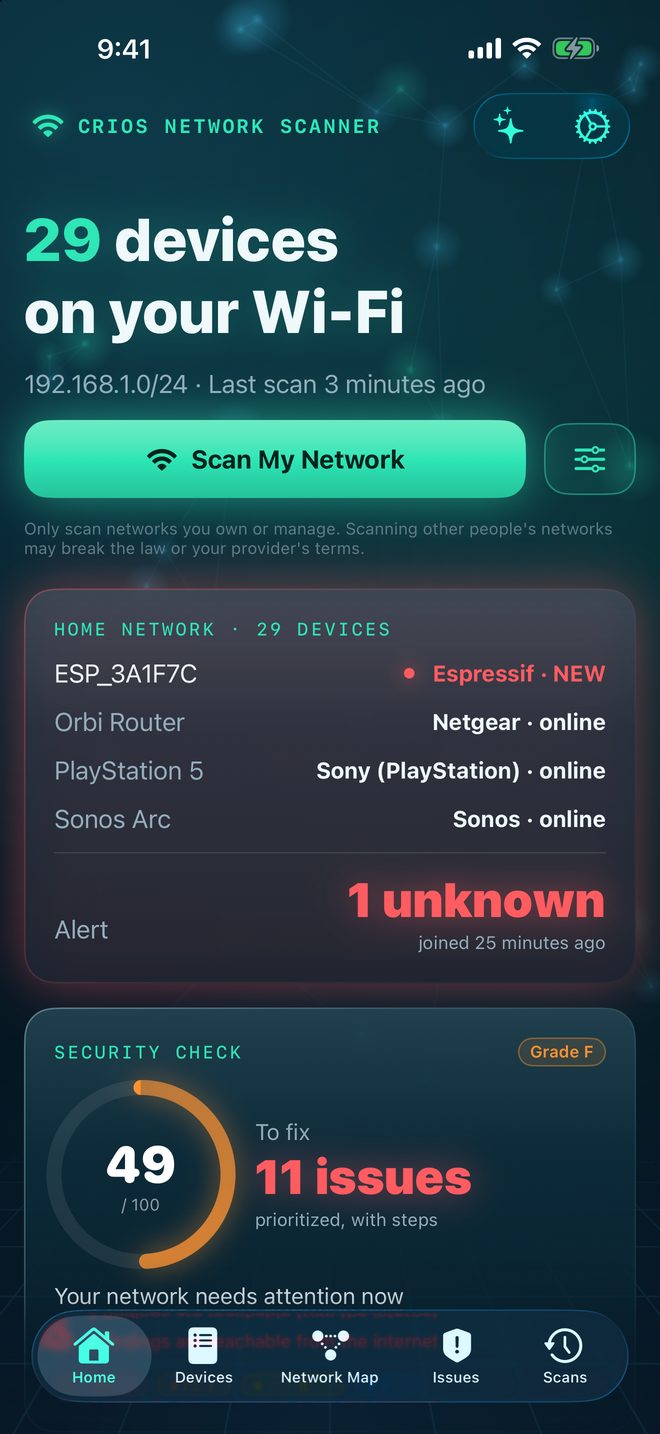
Phones with private Wi‑Fi addresses
iPhones and most Android phones use a private (randomized) Wi‑Fi address for each network. That's good for privacy, but it means the manufacturer can't be read from the address. Crios labels these as Private Wi‑Fi address and usually identifies them as phones from their behaviour instead. Trust them like anything else; if a phone later rotates its private address, it may appear once more as new.
Turn on alerts
In Settings, switch on Alert me about new devices. From now on a scan that finds something you've never seen sends a notification. On a Mac, set Automatic network scans to run on a schedule while Crios is open, and keep the shield in the menu bar so your score is one click away.
What to do next
Your baseline is set. The score on Home now reflects your network as it is, and the Issues tab lists what's worth fixing, most serious first. Start with anything marked Reachable from the internet, then work down. If you're unsure what a port does before changing it, read Before you close a port.