 Crios
Crios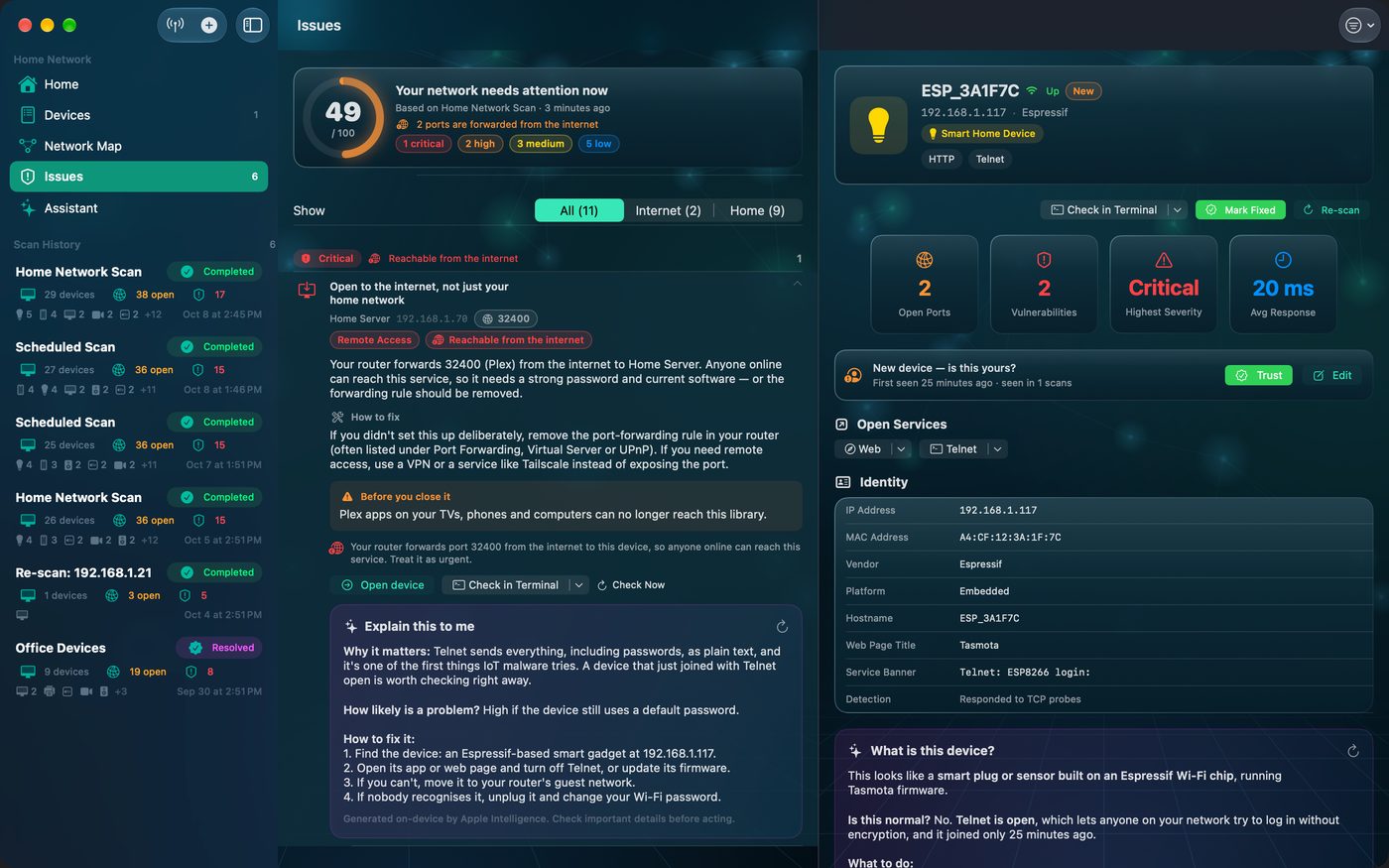
Option 1: Check Now, for a single port
The fastest check. On a device's open‑port list, tap the ↻ next to a port, or Check All Now above the list. Crios re‑tests just those ports and updates them in place:
- Open: it still answers. The fix didn't take, or the service restarted.
- Closed: the device refused the connection. The service is off.
- Filtered: no answer at all, typically a firewall now blocking it.
The port keeps a note of what the original scan found (“scan found it open”), and its vulnerabilities stop counting towards your score once it's no longer open. Findings in Issues offer Check Now for their ports as well.
Option 2: Re-scan the device
Tap Re‑scan (or Verify Fix after marking a device fixed). Crios scans that one device again with the same ports as the original scan and shows a before‑and‑after card:
- Closed: ports that were open and aren't now.
- Still open: unchanged.
- Newly open: ports that weren't open before, worth a look.
The Home score, Issues, the map and your inventory all pick up the newer result. The original scan keeps its history, with a banner pointing to the latest re‑scan.
Option 3: Check from Terminal (Mac)
If you like to see it for yourself, click Check in Terminal on a device or the terminal icon on a port. Crios opens Terminal and runs a check with the built‑in nc (netcat) tool, labelling each port OPEN, closed, or no response. Press Return to check again while you change settings.
You can run the same check yourself:
nc -zv -G 3 -w 3 192.168.1.20 3389A succeeded message means the port is open. Connection refused means it's closed. Operation timed out means no answer: filtered, or the device is offline. To check several ports at once:
for p in 21 23 3389; do nc -z -G 3 -w 3 192.168.1.20 $p 2>/dev/null && echo "$p open" || echo "$p closed"; doneWhen you're done, click Update Results in App next to the Terminal button so Crios matches what you saw.
macOS asks once whether Crios may control Terminal. If you decline, Crios copies the command instead and opens Terminal so you can paste it.
When results disagree
If Terminal says a port is closed but Crios shows it open, Crios is showing an older result. The Open Ports header says As of a time for exactly this reason. Tap Check All Now to refresh.
A port that times out while others on the same device answer usually means a firewall changed, for example Windows switching a network from Private to Public.
Confirm nothing broke
After a fix, check the thing that port was for still works if you need it: print a page, open a shared folder, start a backup. Before you close a port lists what commonly depends on what.